TAP · Subsídio de Mobilidade
TAP Documents
To claim the mobility subsidy you need two documents from the airline. You order them on the TAP site in about fifteen minutes. No account required — the e-ticket is enough.
Guide put together by Igor Kartuzov · SeedWave, Madeira
- No sign-up
- ≈ 15 minutes
- One booking, all passengers
- Código de Reserva
- ABC123
- Número do Bilhete
- 047 1234567890
- Apelido
- SILVA
Three fields from the email TAP sent when you bought the ticket. The data shown is made up.
What to have at hand
- The e-ticket email from TAP — it carries both the booking code and the ticket number
- The NIF of each passenger
- The passport number of each passenger — not the residence permit
- An address and a separate e-mail for each person
Open the form
The form lives on a separate TAP site — receipts.flytap.com. No password, no registration. Through the menu the path is: on flytap.com open Os meus voos → Gerir reserva → Fatura online.
receipts.flytap.com
Opens in a separate window — on a computer it sits alongside, so the guide stays in view.
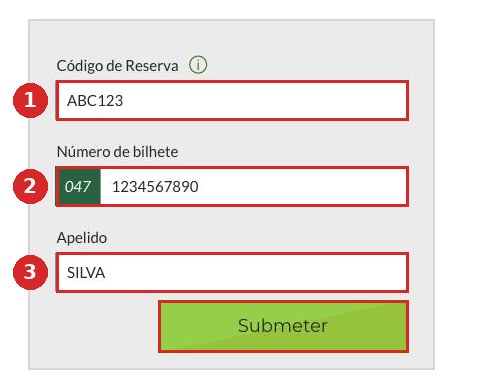
- 1Código de Reserva — six characters, letters and digits. On the ticket it is labelled «Código de reserva / Booking ref».
- 2Número de bilhete — 047 is already printed on the left; that is the start of the number. Type only the remaining ten digits.
- 3Apelido — surname only, no first name.
Press Submeter. If the ticket email is gone, the same two numbers are printed at the bottom of the boarding pass: PNR and E-TICKET.
If nothing is found
The answer Não foram encontrados resultados means the documents for this booking have already been issued once. Order them right after buying the ticket — for older flights the form returns nothing.
Tick both documents and split the data
At the top are all the passengers on the booking: one request covers everyone. Below are two checkboxes — Fatura (the invoice) and Comprovativo de viagem (proof of travel). You need both and both are already ticked; leave them alone.
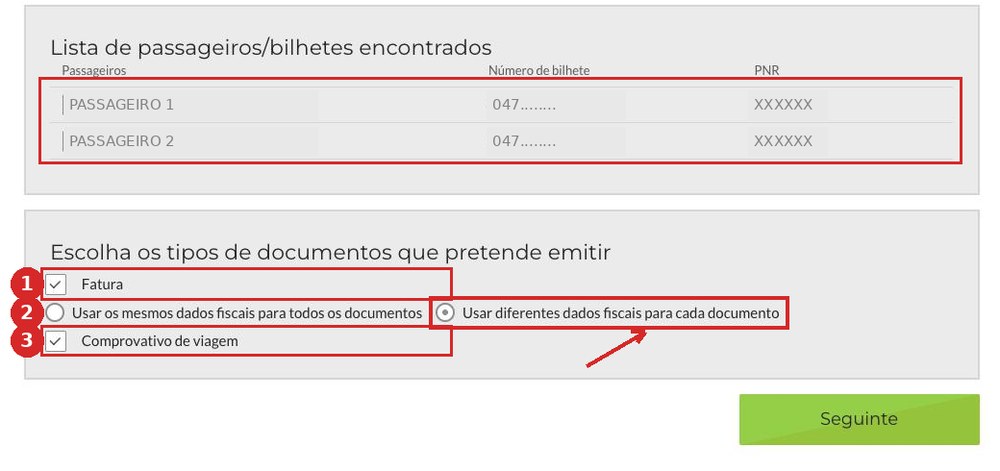
- 1The invoice — the subsidy portal takes the fare, taxes and fees from it.
- 2The fiscal-data switch — the decisive part of this screen.
- 3Proof of travel — evidence that the flight actually happened.
The most expensive mistake
By default Usar os mesmos dados fiscais para todos os documentos is selected. Switch it to Usar diferentes dados fiscais para cada documento.
Otherwise every invoice comes out under a single NIF and lands in one mailbox — and the second passenger gets no subsidy. The form will not let you go back and change it: you would have to start again from the first screen.
The NIF of each passenger
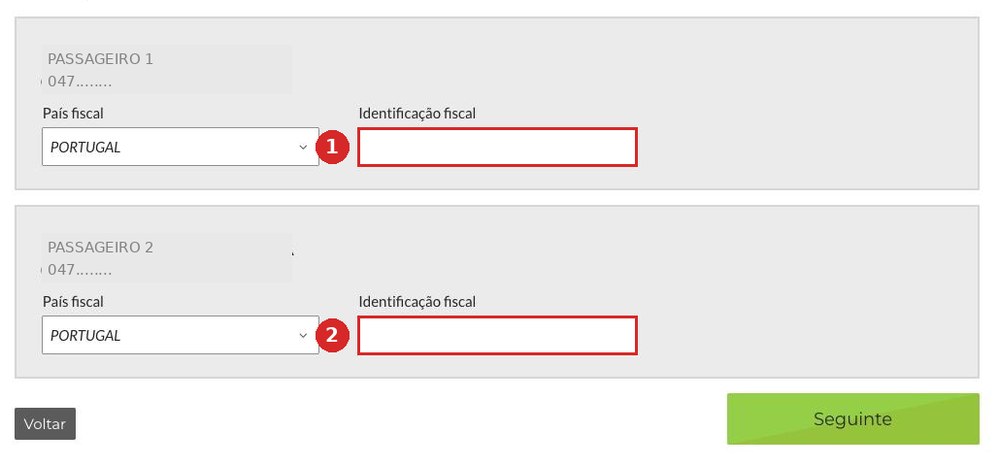
Each passenger now has their own block. Leave País fiscal as PORTUGAL and type the NIF into Identificação fiscal — each one in their own block.
The name fills itself — add the e-mail
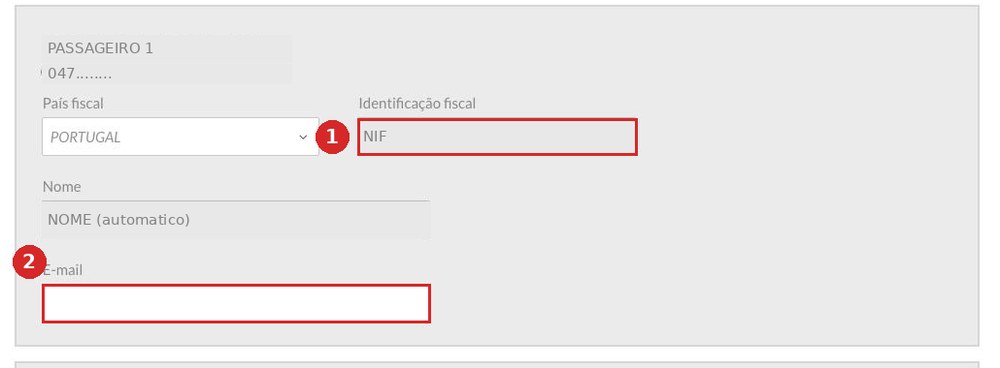
TAP checks the NIF against Finanças and fills Nome on its own. The field is grey and cannot be edited — that is normal. What is left is E-mail: a different one for each passenger, so everyone receives their own documents.
Press Submeter Pedido.
Passport and address
The last screen with fields — again one block per passenger.
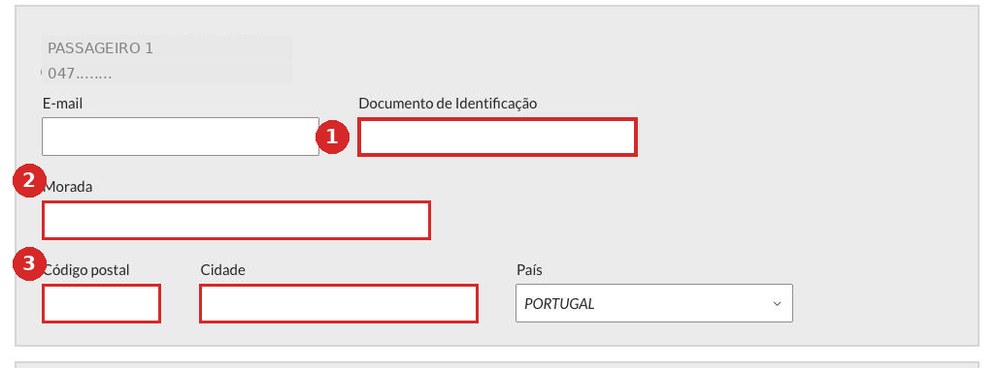
- 1Documento de Identificação — the passport number. Not the residence permit, not the NIF.
- 2Morada — your home address.
- 3Código postal and Cidade — postcode and town.
Press Seguinte.
Two similar fields, two different things
This is where most people type their residence-permit number — and the document comes out useless. Proof of travel certifies that a particular person flew, so the number must match the passport the ticket was bought with and boarding was done with.
Identificação fiscal is the NIF. Documento de Identificação is the passport.
Do not close the page
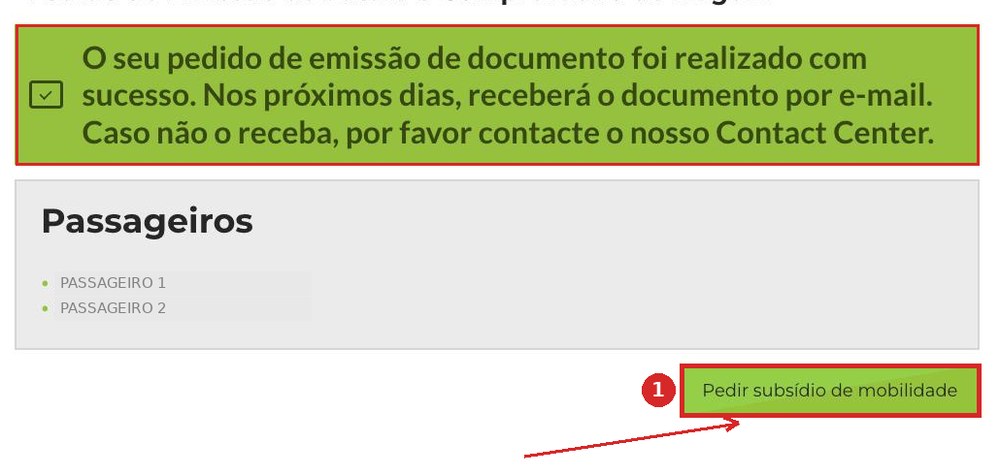
The green banner says the request went through. That is only half of it: at the bottom right sits a green Pedir subsídio de mobilidade button. It is easy to mistake for an ad and close the tab. Press it.
Second request — NIF only
A short form: one Identificação fiscal field per passenger. No passports and no addresses this time.
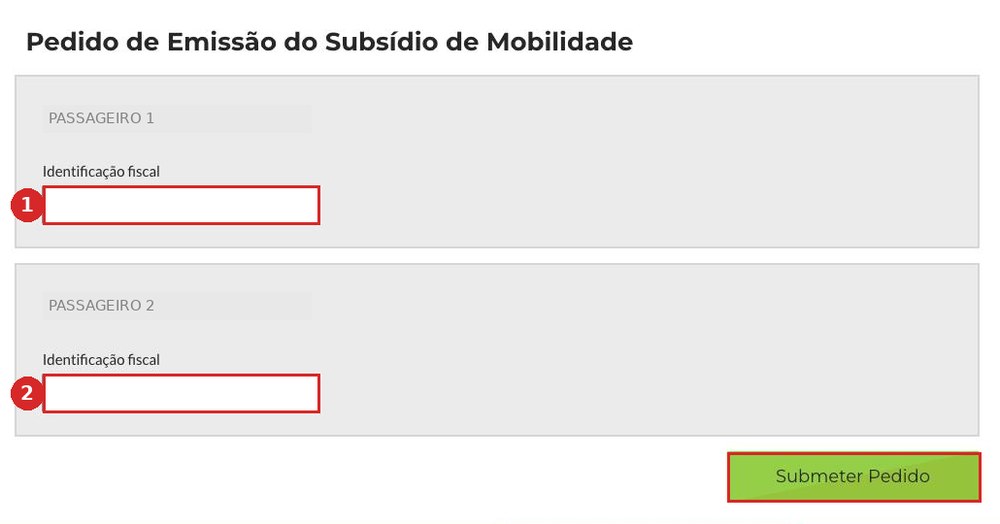
Press Submeter Pedido.
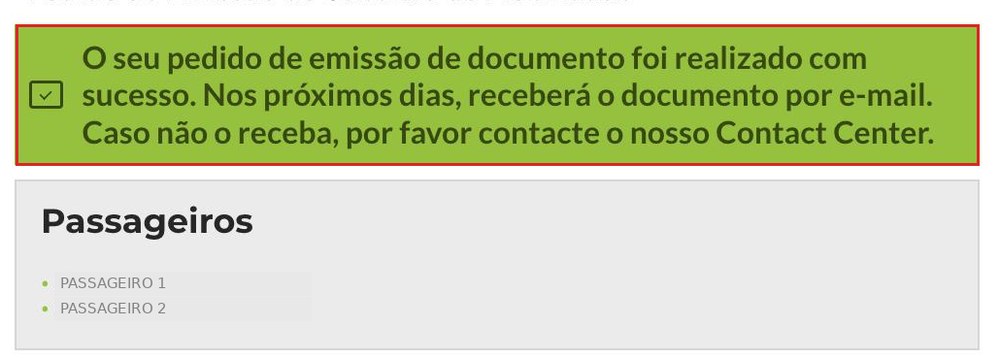
Done
A second green banner: both requests are in. Nothing left to press — the rest is up to TAP.
What arrives by e-mail
The emails do not come together, and not straight away. This is how one real request for two passengers played out: the invoices in the evening, the proofs five and a half hours later, already in the small hours. Another time the gap was one hour; a third time fifteen, and the proofs came first. Count on having everything within a day to a day and a half.
| Time | Attachment | What it is |
|---|---|---|
| 22.08 22:10 | AIE APXIE026_…709.pdf | invoice, passenger 1 |
| 22.08 22:10 | AIE APXIE026_…710.pdf | invoice, passenger 2 |
| 23.08 03:37 | BoardingProofTAP_…053.pdf | proof, passenger 1 |
| 23.08 03:37 | BoardingProofTAP_…054.pdf | proof, passenger 2 |
Every email carries the same subject — «Envio de documento / Document delivery». The attachment name is the only way to tell them apart.
Fatura
The invoice: fare, taxes and fees — these are the figures the portal uses to work out the refund.
The second page of the same file is the Declaração para efeitos de Subsídio de Mobilidade. It never arrives as a separate email, so there is no point looking for it.
Comprovativo de Viagem
Proof that the flight took place: route, dates, ticket number and the document number you typed on the fifth screen.
It is issued after the flight — which is why the request is made in advance.
Next comes the claim
Having the documents is the first step. The second is submitting the claim on the subsidy portal. This guide covers the airline part only, and it is free — forward it to anyone who needs it.